
How to View Invisible Characters in Any Text
Some text looks normal until you copy it, edit it, or paste it into another app. Then something feels off.
You may notice extra spaces, strange line breaks, or a cursor moving farther than expected. Sometimes the text even looks empty.
These issues can come from invisible characters.
You cannot always see these characters with your eyes, but they still exist inside the text. A simple Invisible Characters in Any Text can help you find them and understand what is hiding in your text.
What Are Invisible Characters?
Invisible characters are Unicode characters that do not have an obvious visible shape.
A normal letter such as A is easy to see. A space is different. You can see the gap, but you cannot see the character itself.
Some Unicode characters go even further. They may take up no visible space or appear as an empty area.
Common examples include:
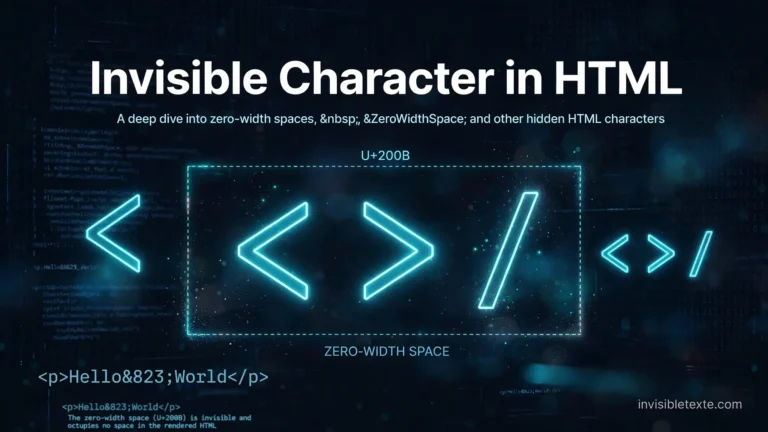
- Zero Width Space (U+200B)
- Zero Width Non-Joiner (U+200C)
- Zero Width Joiner (U+200D)
- Non-Breaking Space (U+00A0)
- Braille Pattern Blank (U+2800)
- Hangul Filler (U+3164)
Each character has a different purpose and Unicode code point.
Why Would You Need to See Invisible Characters?
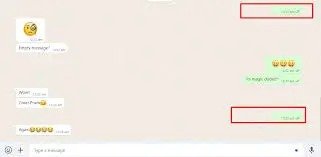
Invisible characters can cause annoying problems when you work with text.
For example, you might copy a paragraph from a website and paste it into a document. The formatting suddenly changes. You remove the visible spaces, but the problem remains.
Hidden characters may be responsible.
They can also affect usernames, search queries, code, documents, and copied content. When you can see the actual characters, you can usually find the problem much faster.
How to View Invisible Characters
The easiest method involves an invisible character viewer or text inspection tool.
Paste your text into the tool. Instead of showing only the normal text, the viewer identifies characters that you cannot normally see.
Depending on the tool, you may see information such as the character name, Unicode code point, or an Invisible Characters in Any Text
For example, a normal space may appear as a small symbol. A zero-width character may appear with a label showing its Unicode value.
This gives you a better idea of what your text actually contains.
Use an Invisible Text Viewer
An invisible text viewer can save time when you do not know what is hiding inside a piece of text.
Paste the text into the viewer and inspect the output. Look for unusual spaces, zero-width characters, or blank Unicode characters.
Some tools also let you copy the detected character separately. That helps when you want to test it somewhere else.
If you regularly work with Unicode text, keeping a character viewer nearby can make troubleshooting much easier.
Check the Unicode Code Point
Every Unicode character has a code point.
For example, the standard space uses U+0020, while a Zero Width Space uses U+200B.
The characters may look similar or completely invisible, but their code points tell you exactly what you are dealing with.
A Unicode code point is useful when you need to identify a character precisely. It removes the guesswork from the process.
How to Find Hidden Spaces
Spaces cause many invisible-character problems.
A piece of text can contain several types of spaces, and they do not always behave in the same way.
You might have:
- Normal spaces
- Non-breaking spaces
- Thin spaces
- Em spaces
- Zero-width spaces
They can look almost identical in normal text.
If you suspect hidden spaces, paste the text into an invisible character viewer. The tool can reveal which space characters appear between the words.
How to View Invisible Characters in a Browser
You can inspect text directly in some browser-based tools.
Open an invisible character viewer, paste your text, and check the results. Browser tools make this convenient because you do not need to install additional software.
For technical work, browser developer tools can also help you inspect text and HTML. This approach requires more knowledge, but it gives you greater control over what you are checking.
For everyday text, a dedicated Unicode viewer usually provides a simpler experience.
How to View Invisible Characters on Windows
Windows users have several ways to inspect hidden text.
For ordinary documents, text editors and character-inspection tools can help. Some editors provide options that display spaces, tabs, line endings, and other normally hidden characters.
If you work with code, many code editors include a setting for showing whitespace. Once enabled, spaces and tabs become easier to spot.
For Unicode characters that remain invisible even after enabling whitespace markers, use a Unicode inspection tool. It can show the exact character and its code point.
How to View Invisible Characters on Mac
Mac users can use text editors that provide whitespace or character-inspection features.
When you turn on visible formatting marks, the editor may show spaces, tabs, and line breaks.
For less obvious Unicode characters, use a character viewer or Unicode inspection tool. Paste the text there and check the character information.
This works better when the text contains zero-width characters that normal formatting marks cannot reveal.
Can Invisible Characters Affect SEO?
They can cause problems in certain situations.
Search engines and websites process text as data, not just as something you see on a screen. An unexpected Unicode character can change how a string gets stored, compared, searched, or copied.
This does not mean every invisible character creates an SEO problem. Many have legitimate uses.
The main issue appears when hidden characters accidentally enter important text, URLs, keywords, or other fields.
Checking suspicious text before publishing can help you catch these mistakes.
Invisible Characters in Usernames and Social Media
People also use invisible characters to create blank-looking or unusual text.
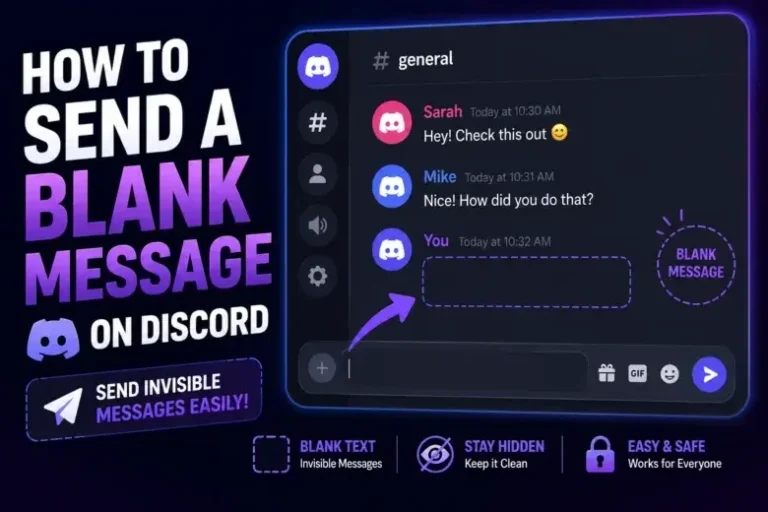
A Unicode character such as the Braille Pattern Blank may look empty even though it exists in the text. Some platforms accept these characters, while others filter them.
The same character can also behave differently from one platform to another.
If you copy a blank-looking username or message, viewing its Unicode characters can show you what actually sits inside the text.
How to Remove Invisible Characters
Once you find an unwanted invisible character, you can remove it manually.
For a short piece of text, place the cursor around the problem area and delete the character. This can be difficult with zero-width characters because you cannot see where they sit.
A text-cleaning tool can make the job easier.
For larger amounts of text, use a tool that identifies and removes unwanted Unicode characters. Always check the cleaned text afterward. Some invisible characters serve a real purpose, so you should not remove every hidden character without checking first.
Are All Invisible Characters Bad?
No.
Invisible characters have legitimate uses.
For example, zero-width characters can affect how scripts join or separate. Non-breaking spaces can keep two words together on the same line. Other invisible Unicode characters support writing systems and text formatting.
The problem starts when you do not know why a hidden character appears in your text.
Instead of removing everything automatically, identify the character first.
Final Thoughts
Invisible characters are easy to miss because they do not look like normal text. That does not make them harmless or meaningless. They still form part of the text string.
If you find strange spacing, unexpected formatting, or a blank-looking character, paste the text into an invisible character viewer. Check the Unicode code point and character name to see what you are dealing with.
Once you know the hidden character, you can decide whether to keep it, replace it, or remove it.
That simple check can save a lot of time when ordinary text starts behaving in an unusual way.

One Comment